Your first robot in 10 minutes
You'll build Foxy, a café robot that takes orders and suggests a croissant, test it, change it by chat and publish it. No code, no hardware: the 3D emulator plays the robot.
1Sign in
Open Esos and sign in with the link we email you. You land on Agent, which asks “what do you want to build?”.
2Describe your robot
In the big box (“Describe what to build”), say what you want in your own words, for example: “A friendly fox robot called Foxy for coffee shops that suggests a croissant with coffee”. Press Enter.
3Answer a few questions
Esos asks only what your idea leaves open: where it works, its main job, what it should be, its languages and how you'll sell it. Tap an answer and press Next, or press “Skip planning, just build” to build from your words as they are. Nothing is made until you press Build it.
4Read the robot plan
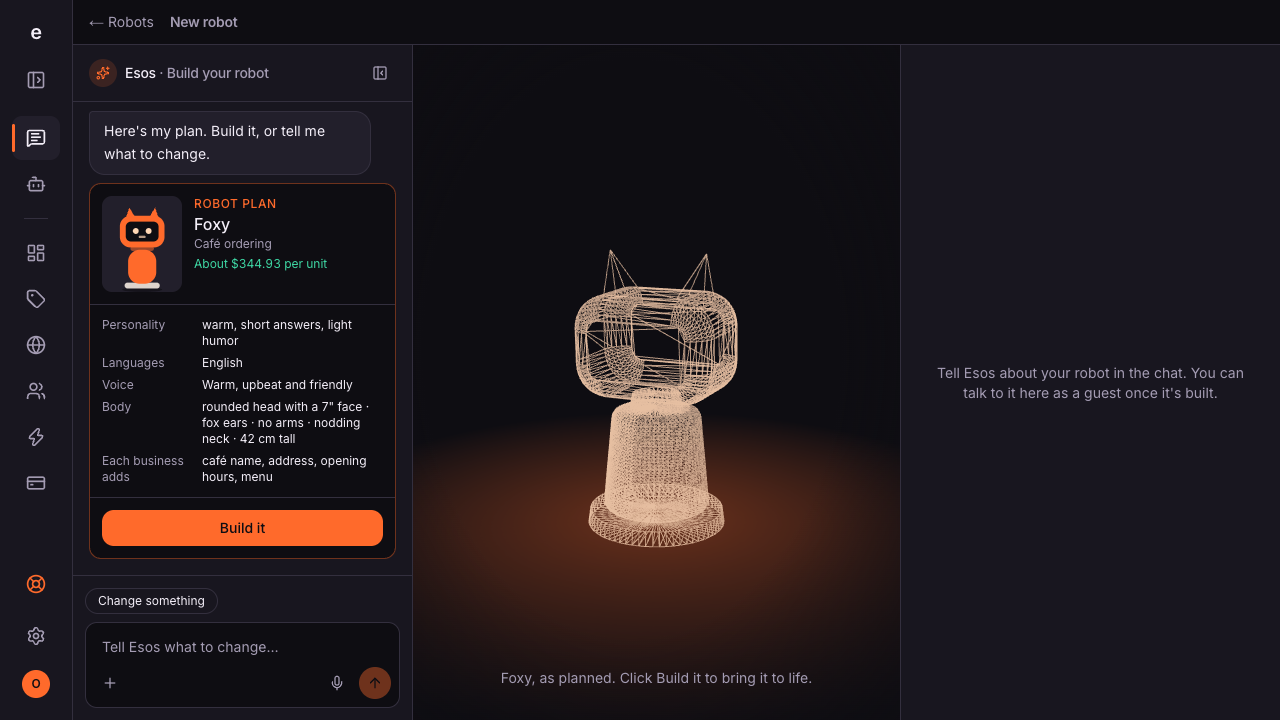
Esos answers with a “Robot plan”: the body, what it does, its languages and what one unit costs to build. Ask for changes in your own words, or press “Build it”.
5Watch it build and test itself
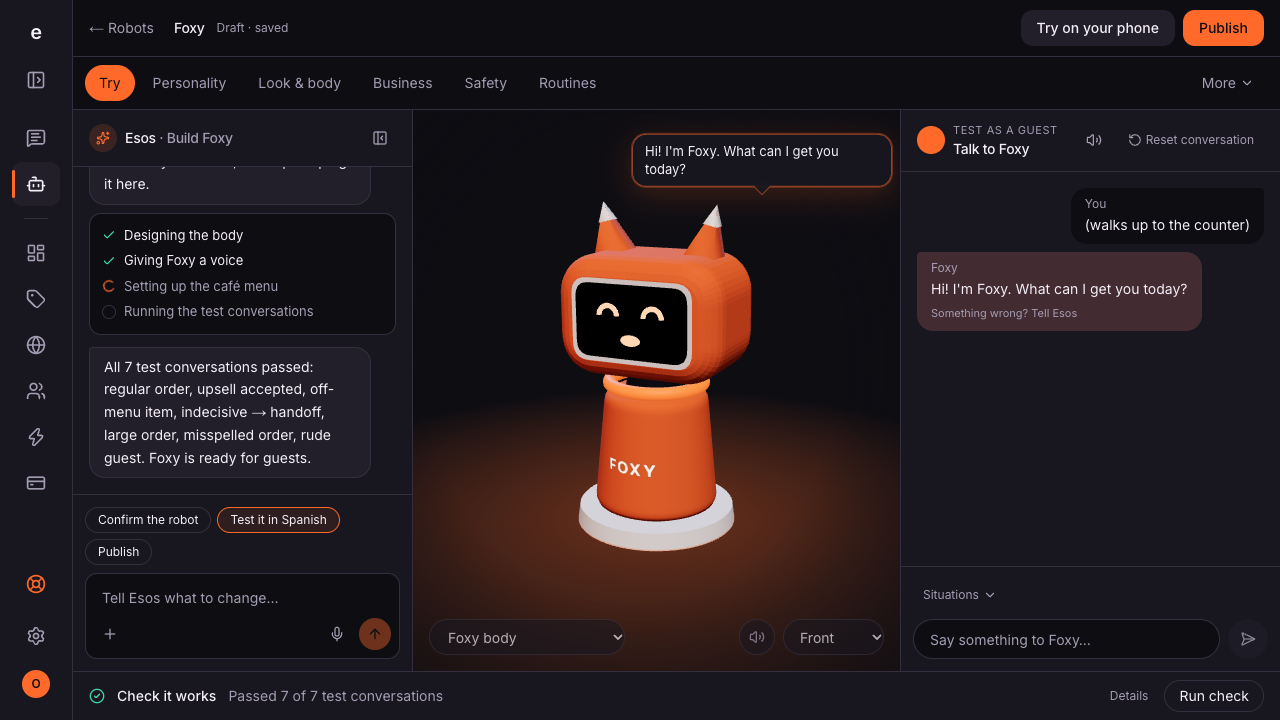
Foxy appears in the 3D emulator, and Esos runs 8 test conversations with scripted guests. When you see “Foxy passed all 8 test conversations”, your robot works.
6Change it by chat
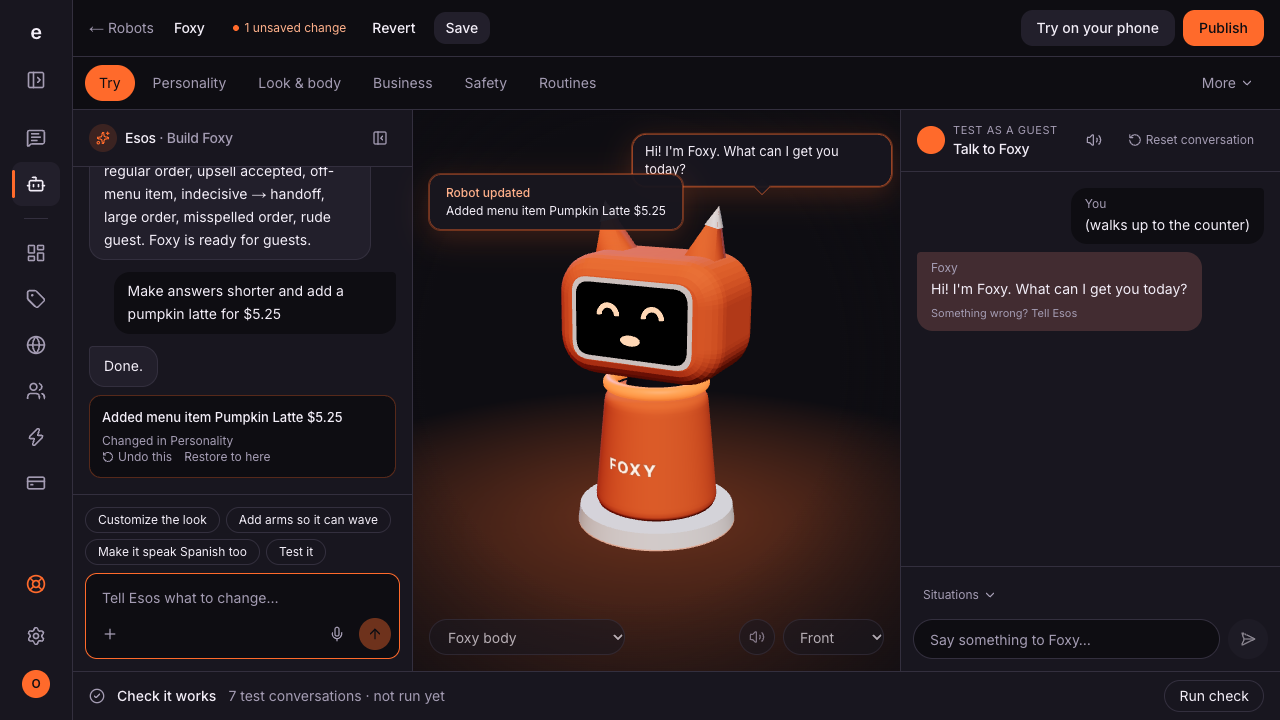
In the chat (“Message to Esos”), ask for a change: “Make answers shorter and add a pumpkin latte for $5.25”. The change appears as a card that says what changed, and you can undo it.
7Talk to it like a guest
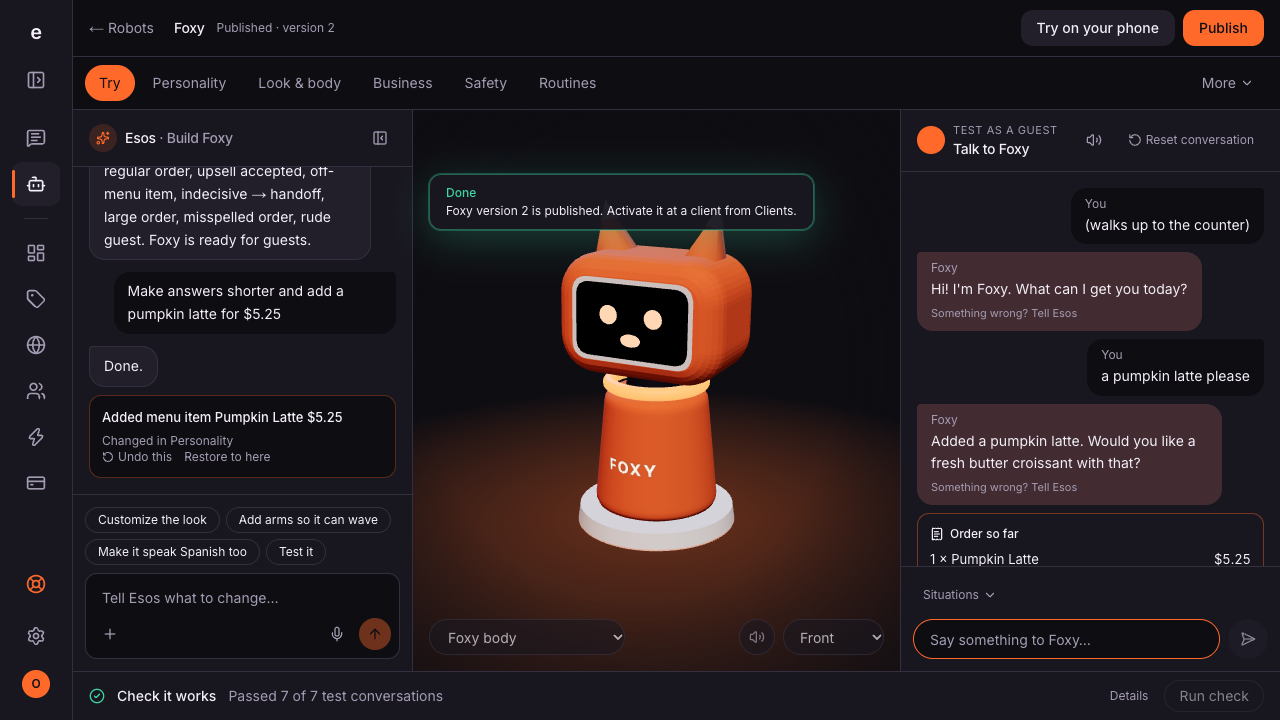
On the right, “Test as a guest”, type what a guest would say to Foxy: “a pumpkin latte please”. Foxy takes the order, and the order ticket shows what the café will make.
8Publish it
Press “Publish” (it says how many changes go out). Esos checks everything once more; choose “Public” so anyone with the link can try it, then publish. Esos says it’s published and gives you a link to share. A new robot isn’t on your store yet: press “Put it on your store” there so businesses can subscribe.
Next: put Foxy on a phone or tablet and set it up at a café in Operate.