Sketch: shape and test your robot
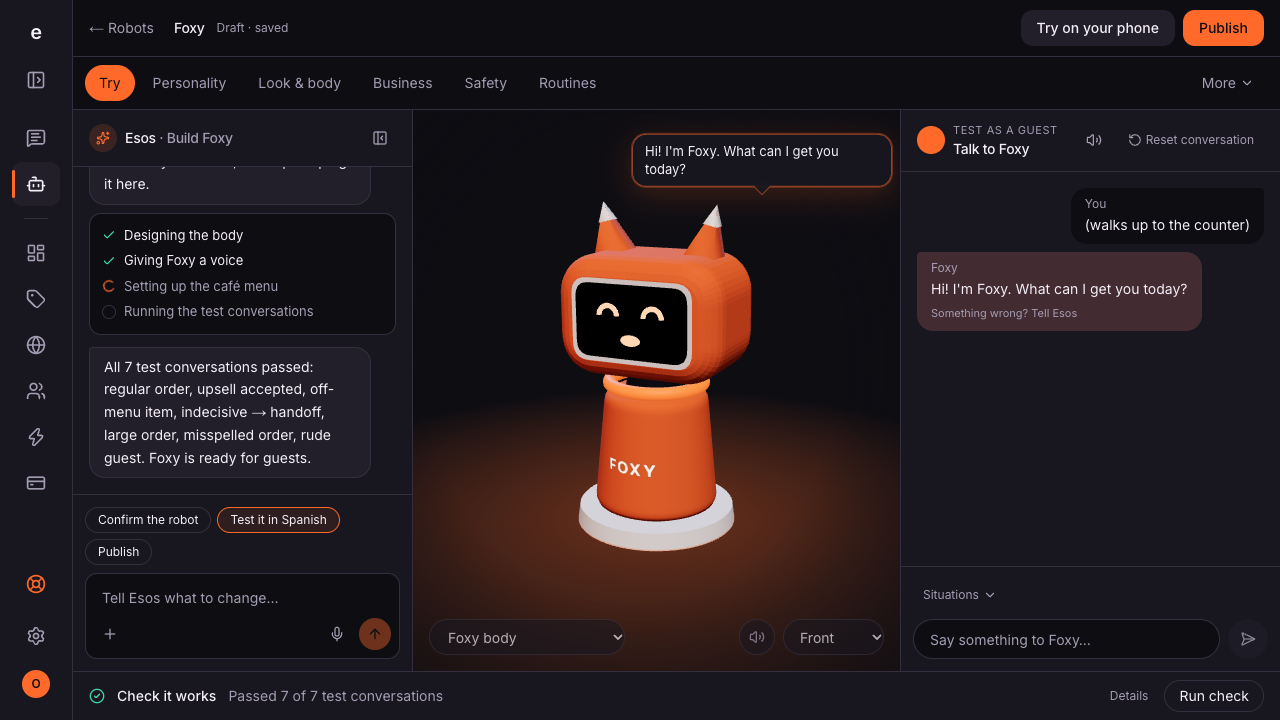
The Studio is where you shape a robot and try it before anyone else sees it. On the left is the chat and the tools; in the middle the robot runs in a 3D emulator; on the right are its tests.
The body
In Body and Colors you choose the head, the face screen, the ears, arms (none, simple or gesture arms), the height and the colors. Arms add servos and cost; the Build cost card shows the change straight away. Accessories, like a QR stand next to the robot, are only added when you ask for them.
Voice and languages
In Voice & language you pick the voice and the languages. With automatic language detection on, the robot answers in the language the guest speaks.
The emulator
Talk to the robot by typing in “Talk to Foxy” under the stage. The order ticket shows what the café would make. Use the controls to test real situations:
- Person approaches: a guest walks up
- Noisy room: the robot hears less clearly
- Network offline: what happens when the internet drops
- Staff button: a person takes over
Tests
The Tests panel runs scripted guests through your robot, exactly as a real conversation would go. A café robot has seven: a regular order, an accepted upsell, an off-menu item, an undecided guest (who should be handed to staff), a large order, a misspelled order and a rude guest. Run them in English, Spanish or Arabic.
A failing test says what went wrong; Fix it for me asks the assistant to fix it. Compare shows what a change did to the test results.
Unit economics
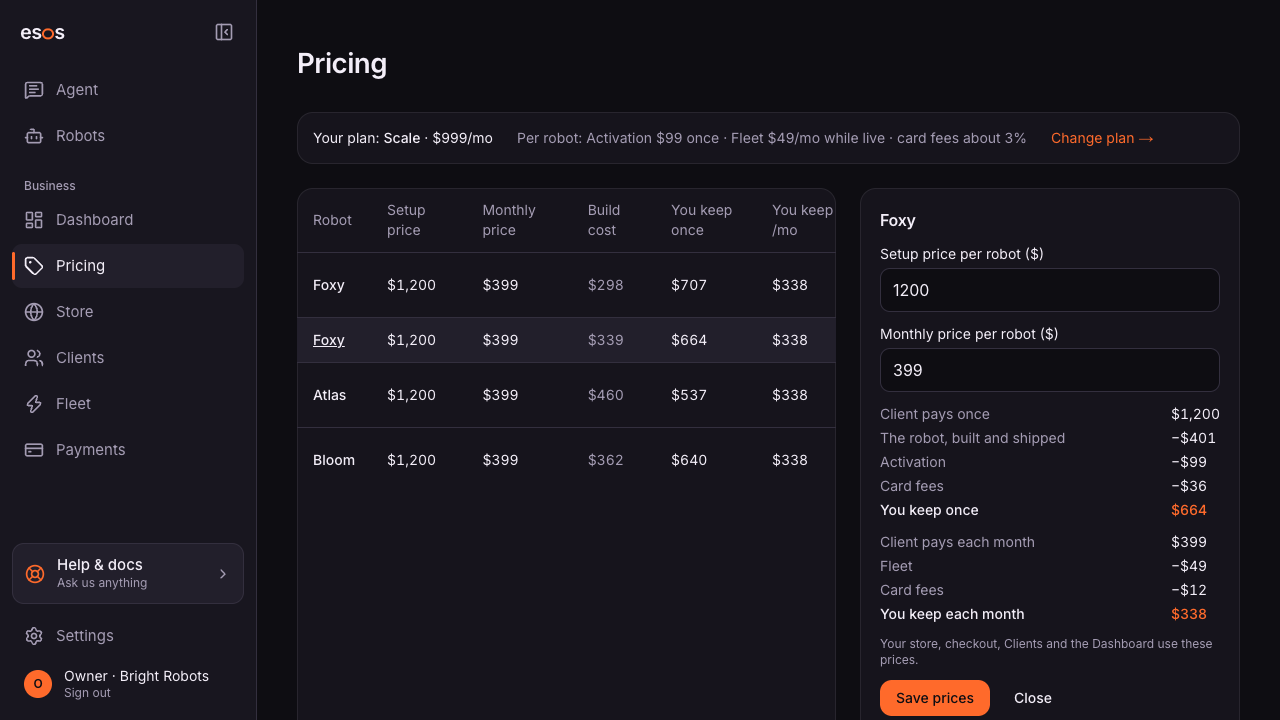
Under the robot, the Build cost card shows what one unit costs to build, a suggested price, your margin, and how many days a café needs to earn its price back. Open Unit economics to change the assumptions.
Try it on your phone
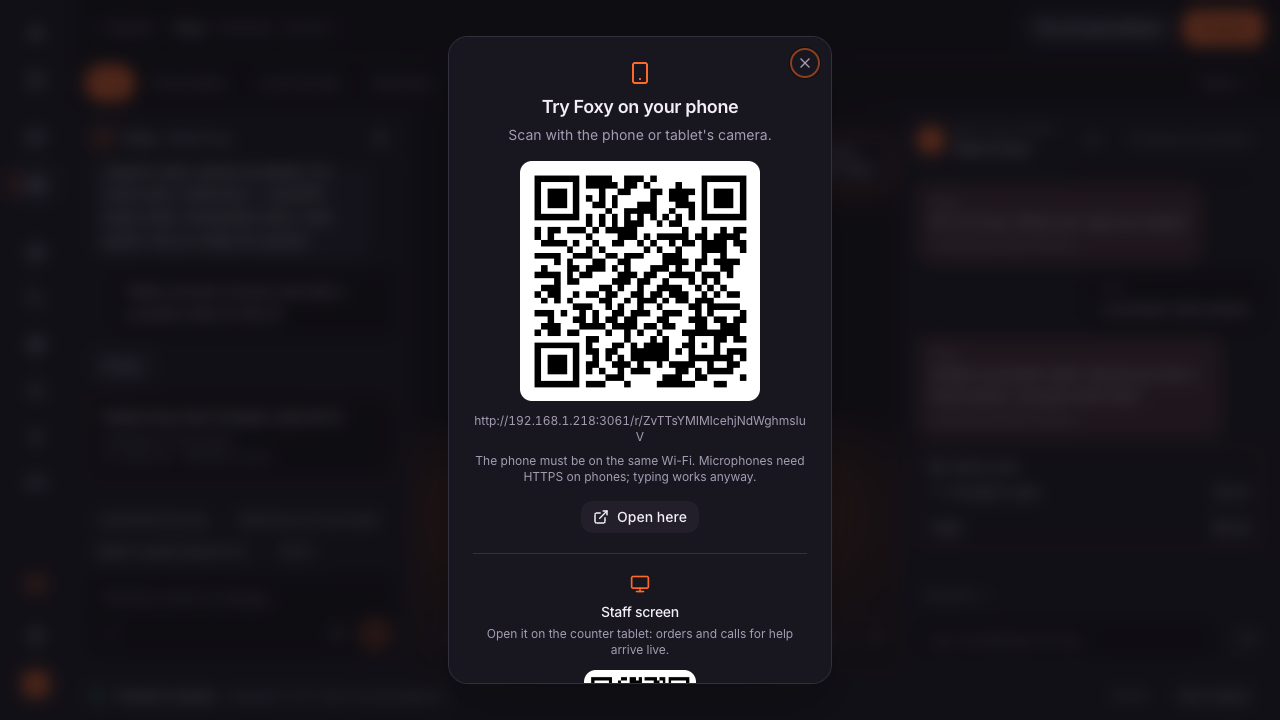
Press ⌘K and choose “Try on your phone”: scan the QR code and the robot runs on your phone or tablet. The second QR opens the staff screen, where orders and calls for help arrive live.
Publish
Publish checks the robot once more and saves a version. Choose Public so anyone with the link can try it (your store's demo runs the latest public version), or Workspace only while you're still working on it. Versions never change after they're saved; you can always go back.